Sessions and breaks
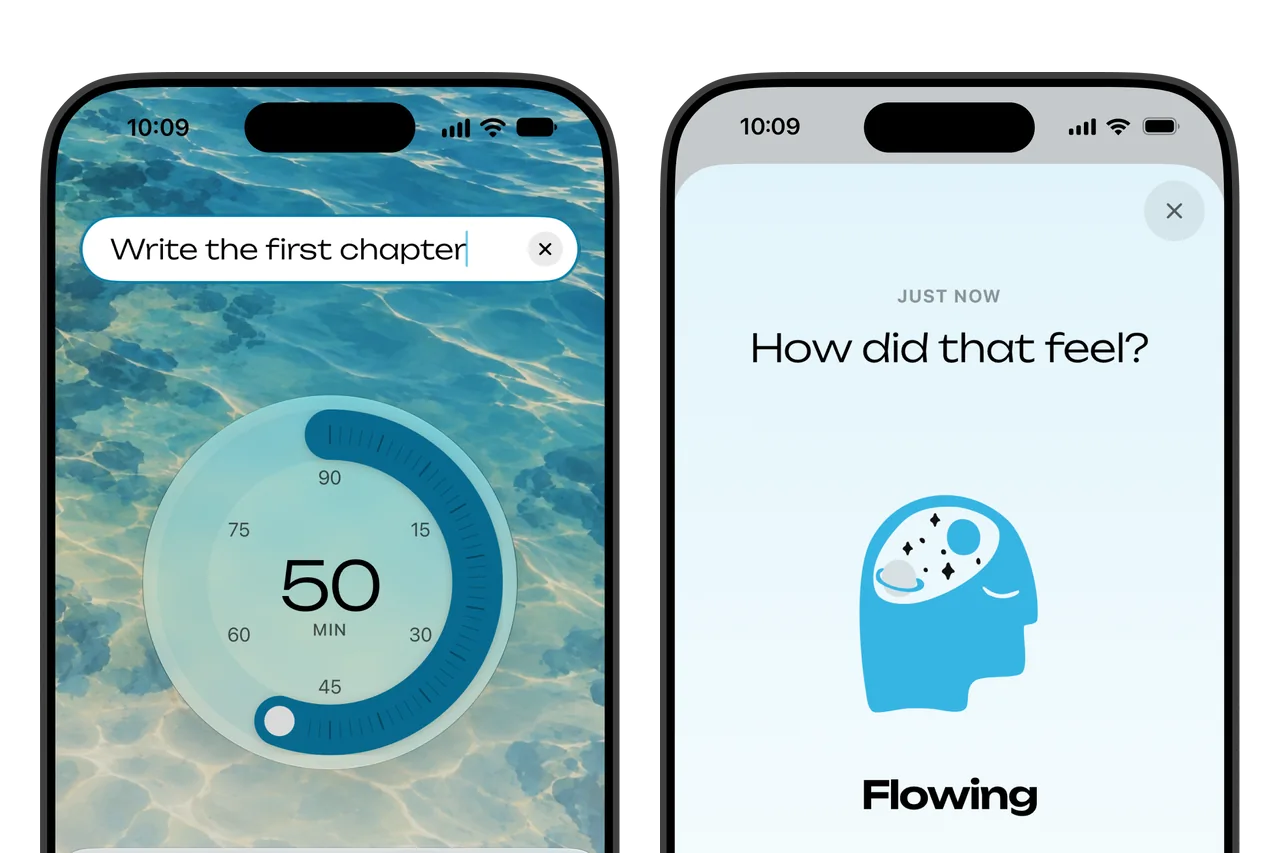
Moment works on a loop: Focus → Reflect → Insight. You set an intention and a length, focus until the time runs out, and then mark how the session felt. This page explains each of those steps, along with breaks, themes and sounds, and Stats and Insights explains what Moment shows you afterwards. Everything on this page is free.
The steps are the same on iPhone, iPad, Mac and Vision Pro. On Apple Watch they are arranged differently, and the Apple Watch guide describes them.
Intention
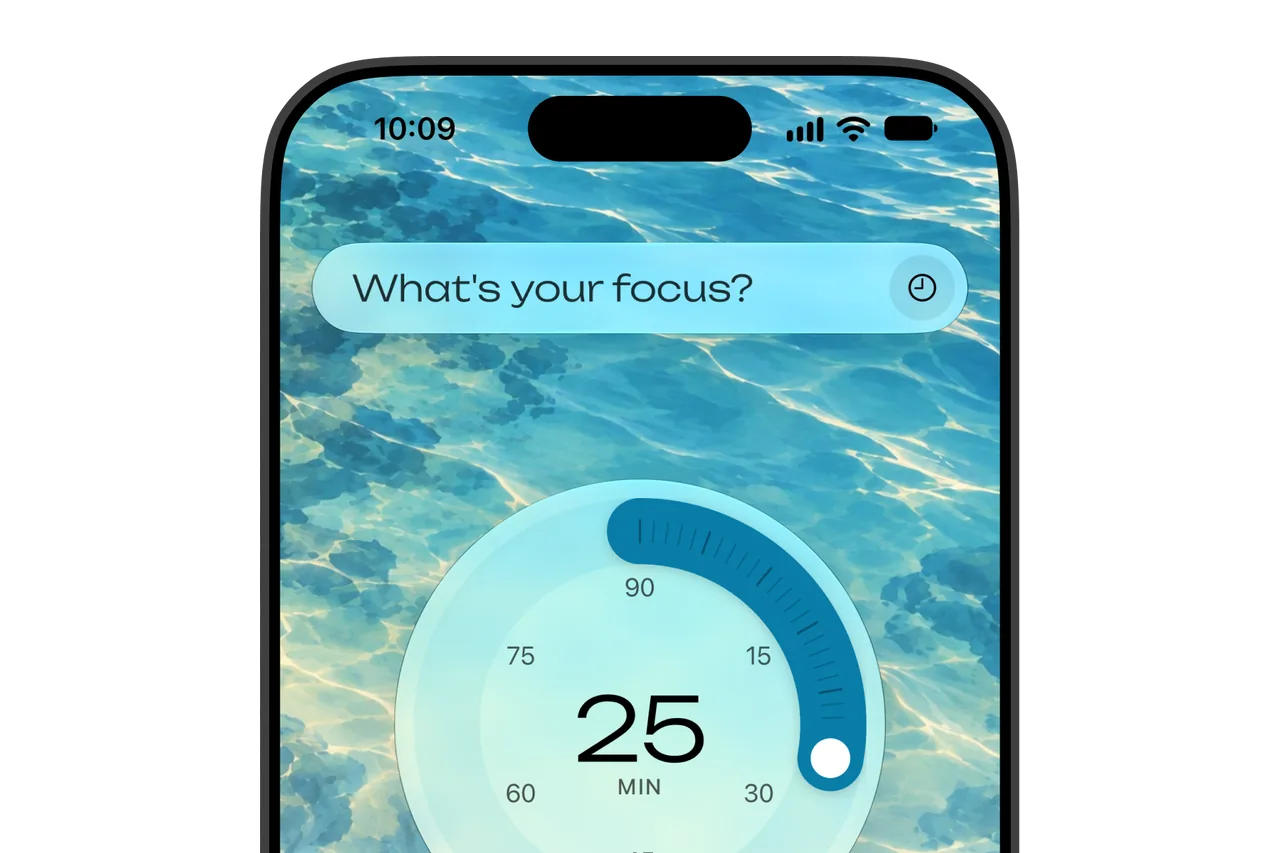
An intention is a few words about what the session is for. Until you enter one, the field above the dial reads “What's your focus?”, and a session can start without one.
When you select the field, Moment lists your recent intentions under it, and the list narrows as you type. Choose one to use it again. To take one off the list, swipe it away on iPhone and iPad, or click the × beside it on the Mac.
While a session runs, the pencil in the field lets you change the intention, and the session is saved with the last one you entered. On Apple Watch, you can't type an intention.
Session length
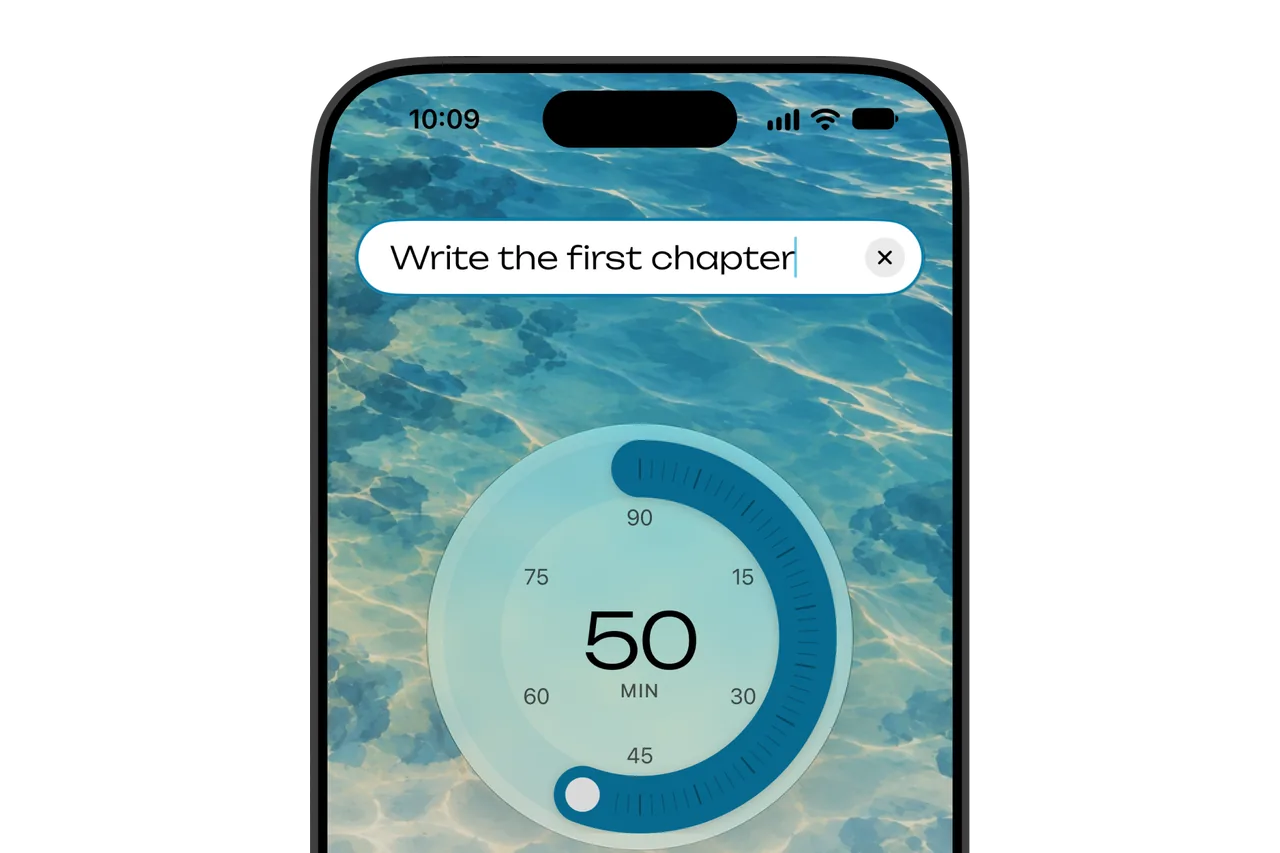
Turn the dial to set a session from 5 to 90 minutes, in steps of one minute. It starts at 25 minutes. Each device keeps the last length you set on its dial and opens there the next time, and this length isn't synced between devices.
On the Mac, you can also click the time in the middle of the dial and type a length. Moment rounds what you type to the nearest 5 minutes. On Apple Watch, the Digital Crown sets the length in steps of 5 minutes.
Start focusing begins the session. While it runs, you can pause and resume it, or end it early.
Breaks
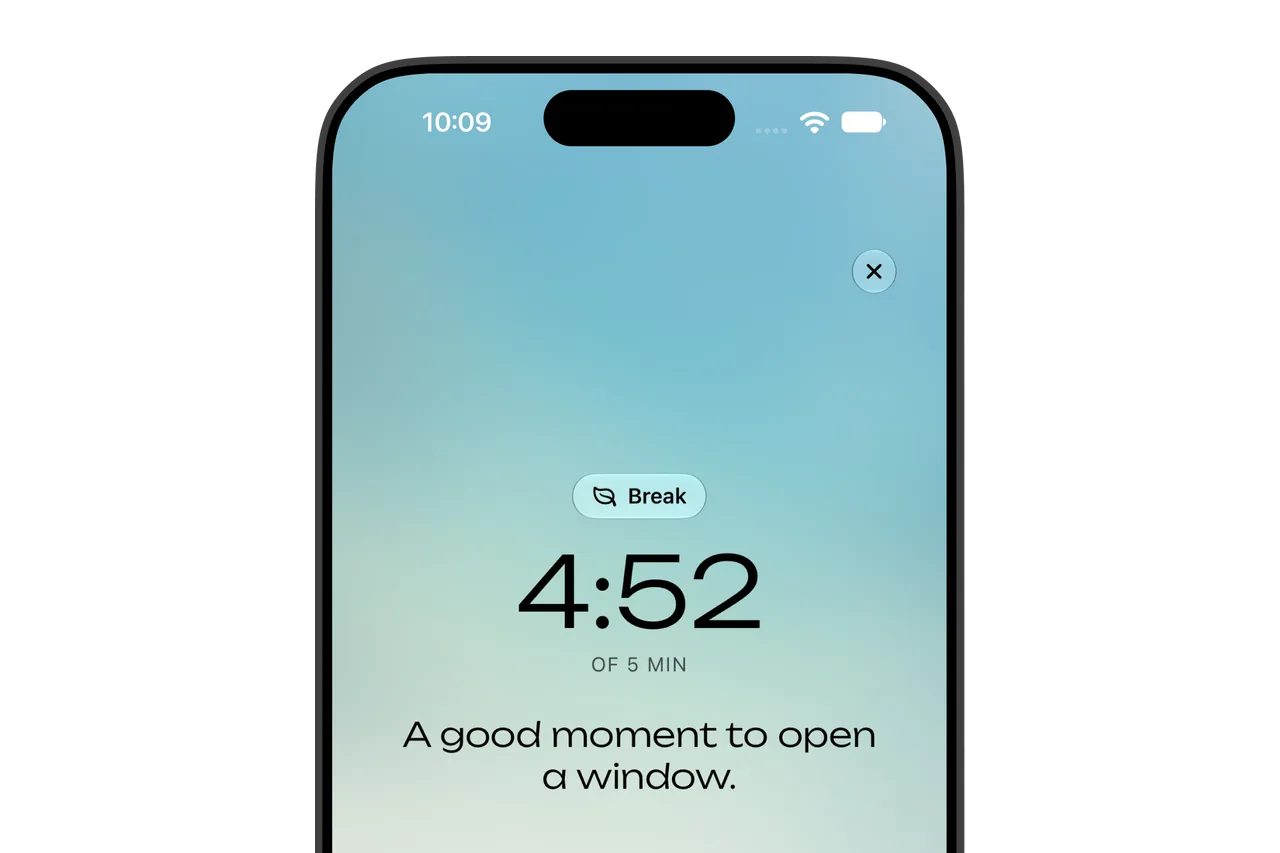
Breaks are off until you turn them on. The Breaks card on the timer opens a sheet with the switch and three settings.
- Short break. It follows each session and lasts 1 to 30 minutes, 5 by default.
- Long break. It takes the short break's place at the end of a round and lasts 5 to 60 minutes, 20 by default.
- Sessions before long break. A round is 2 to 8 sessions, 4 by default.
With breaks on, Moment follows the Pomodoro pattern, with a short break after each session and a long one after several. A row of dots shows where you are in the round.
The next session or break doesn't start on its own, so each step waits for you on its own screen.
- Session over. When a focus session ends, Moment shows the break that is due and waits until you press Start break.
- Break. The time left counts down with one suggestion for the break, such as “A good moment to open a window.”, and Skip break ends it early.
- Break over. When the break ends, Moment shows the next session's intention and waits until you press Start focusing.
On Session over and Break over, Another 5 minutes adds five minutes of what has just ended, which is focus on the first and the break on the second.
Use last intention, in Settings, keeps your intention for the next focus session when breaks are on. It is off until you turn it on. Either way, you can change the next session's intention on the Break over screen before you start.
On Apple Watch, breaks have their own page of settings, and the Apple Watch guide describes it. Focus and rest has pages on two other rhythms, 52/17 and 50/10.
Reflection
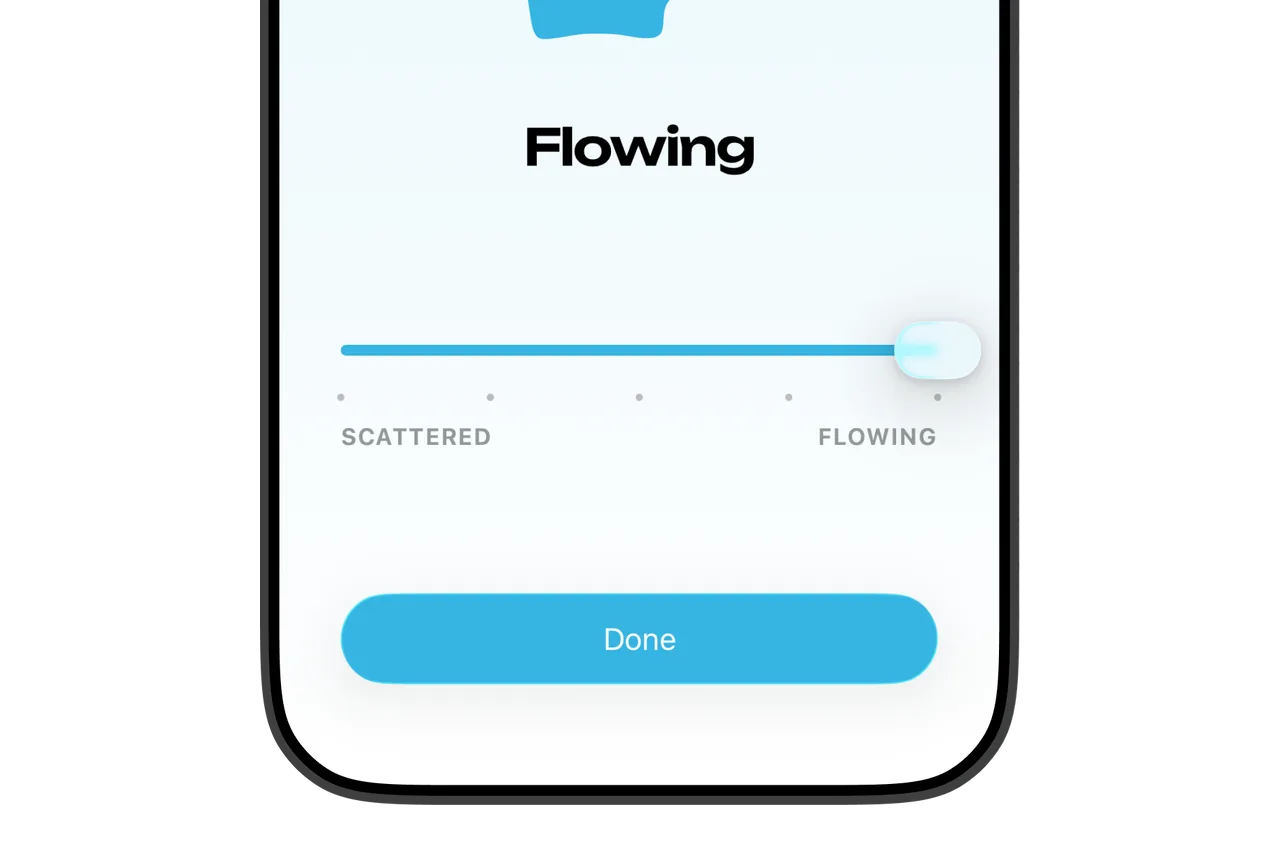
When a focus session runs to its end, Moment asks “How did that feel?”, and you mark how it felt on a scale from scattered to flowing. The five feelings are Scattered, Drained, Steady, Focused and Flowing. Your answer is saved with the session. You can skip the question, or turn off Ask how each session felt in Settings.
With Moment Pro, Stats shows how your sessions felt over time, and Stats and Insights explains it. On iPhone, iPad and Apple Watch, Moment can also save your answer to Apple Health as State of Mind, which the iPhone and iPad guide explains.
Themes

Moment has four themes: Ocean, Air, Sand and Forest. You choose one in Settings, and the choice syncs to your other devices over iCloud. A theme changes four things.
- Colours. The app and its widgets take the theme's colours.
- Background. On iPhone, iPad and the Mac, each theme has a picture behind the timer, one for day and one for night, and Background image in Settings turns it on or off. It starts on for iPhone and iPad, and off for the Mac.
- Sounds. Each theme has its own background sounds and its own sound for the end of a session.
Sounds
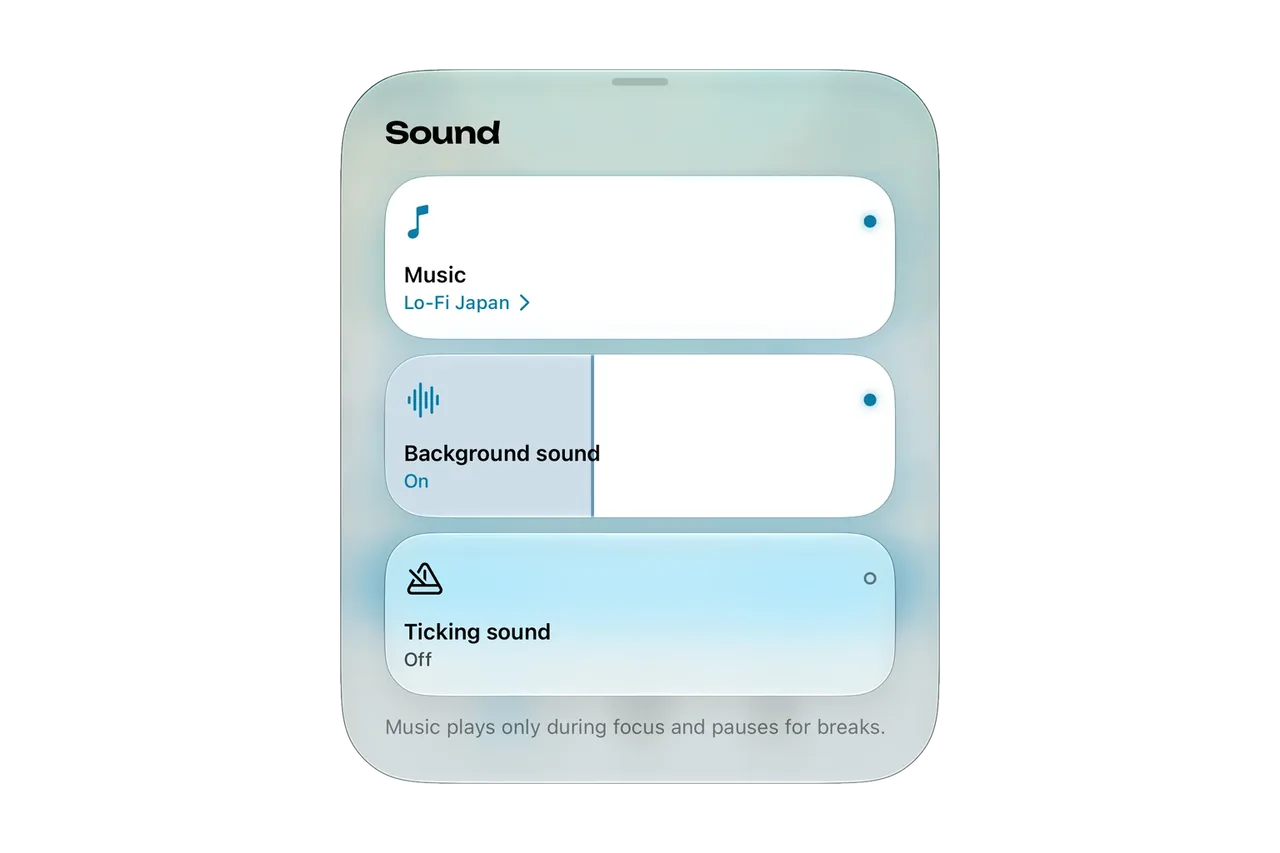
The Sound card on the timer opens the Sound sheet on iPhone, iPad, Mac and Vision Pro. It has three boxes, and you can turn each one on or off.
- Music. Moment plays the music you choose on Apple Music or in your library while you focus, and the Apple Music guide explains how it works.
- Background sound. Each theme has three recordings, and Moment chooses one of them each time the sound starts. It has its own volume.
- Ticking sound. A tick plays each second while a session runs, and it has its own volume.
Background sound and ticking play alongside your own music or podcasts and never stop them.

Moment, a focus timer for deep work
The timer is free on iPhone, iPad, Mac, Apple Watch and Vision Pro, and your sessions sync between them.

